Blog
MacBook Not Turning On? Common Causes We See While Repairing
When your MacBook won’t power on, it can feel urgent and frustrating—especially if you rely on it for work, school, or business. In our repair experience, most “dead” MacBooks are not permanently damaged. Instead, they’re usually affected by a power, battery, software, or logic board issue that can be diagnosed and repaired professionally.
This guide explains the most common causes we see while repairing MacBooks, how to identify warning signs, and when professional service is the safest solution.
Understanding the Problem: What “Not Turning On” Really Means
Before jumping to conclusions, it’s important to define the symptom:
- No screen activity at all
- Black screen but keyboard lights turn on
- Charging light doesn’t appear
- Startup sound but no display
- Apple logo appears, then shuts off
Different symptoms point to different internal causes. A trained technician diagnoses these through voltage testing, battery health checks, and board-level inspection rather than guesswork.
Completely Drained or Failed Battery
One of the most common causes of a MacBook not turning on is a depleted or failed battery.
Why It Happens
- Aging lithium-ion battery cells
- Frequent deep discharging
- Overheating damage
- Swollen battery affecting internal components
Signs We See During Repairs
- No power response even when plugged in
- Battery not detected in system diagnostics
- Swelling visible after opening device
- Rapid drain before total shutdown
Battery failure is especially common in older models like the MacBook Air and MacBook Pro units used daily for 3–5 years.
Professional battery replacement restores power safely. DIY battery installs can damage delicate connectors if not handled properly.
Faulty Charging Adapter or Charging Port
Sometimes the MacBook itself isn’t the issue the charger is.
Common Problems
- Damaged MagSafe or USB-C cable
- Power brick failure
- Debris inside charging port
- Shorted DC-in board
We frequently test voltage output before opening a MacBook. Many customers replace the laptop unnecessarily when the real issue is a faulty adapter.
If your charger feels unusually hot or the cable is frayed, it should be replaced immediately.
Logic Board Failure (Motherboard Issues)
When a MacBook shows zero signs of power—even with a working charger and battery—the logic board may be the culprit.
Causes We See Most Often
- Liquid damage (even small spills)
- Power surge damage
- Corrosion buildup
- Failed power management IC chip
Liquid damage is particularly common. Even minor spills can corrode circuits over time, leading to sudden shutdown weeks later.
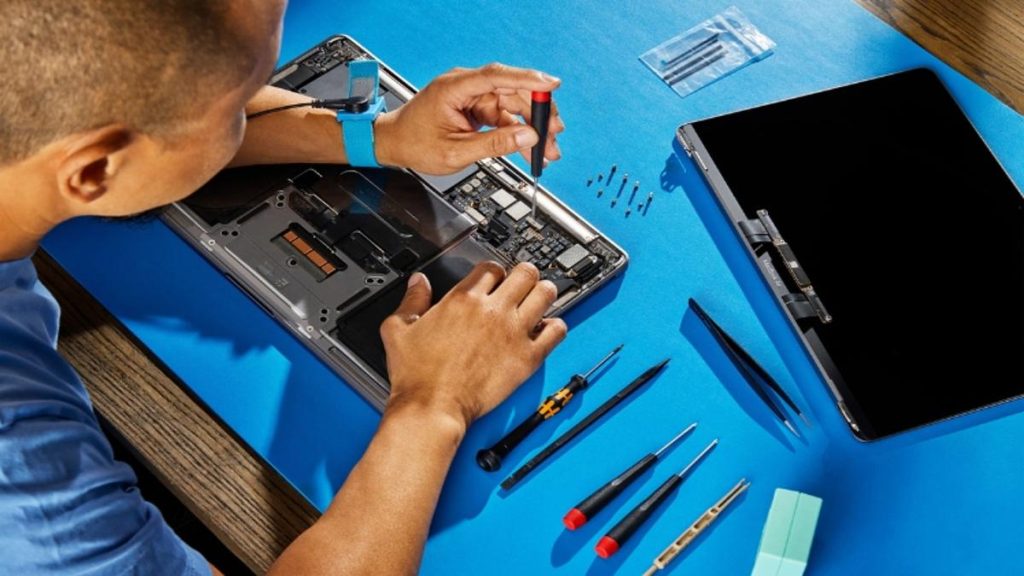
Board-level repair is highly specialized. It requires micro-soldering skills and diagnostic tools. Attempting DIY fixes at this level can permanently damage the device.
Corrupted macOS or Startup Failure
Sometimes your MacBook is technically “on” but appears dead because macOS cannot boot properly.
Symptoms:
- Apple logo appears then shuts down
- Stuck loading bar
- Black screen after update
- Endless restart loop
Major macOS updates can occasionally corrupt system files if interrupted.
Safe Mode diagnostics or recovery mode reinstall can often fix software-level startup problems without replacing hardware.
Display Failure (Looks Dead, But Isn’t)
A surprising number of “won’t turn on” cases are actually display failures.
What Happens:
- Backlight stops working
- Display cable disconnects
- Internal LCD cracks
- Flexgate issue (certain models)
The MacBook may actually be running — you just can’t see it.
We test this by connecting an external monitor. If the external display works, the internal screen assembly is likely the issue.
Power Button or Keyboard Failure
The power button on newer MacBooks is integrated into the keyboard or Touch ID system.
If the button fails:
- No startup response
- Inconsistent powering on
- Device turns on only when lid opens
Keyboard replacements can resolve this, but diagnosis is important before replacing the entire top case.
Overheating Protection Shutdown
MacBooks include internal thermal protection systems.
If internal temperatures spike due to:
- Dust-clogged fans
- Failed cooling system
- Heavy workload
- Old thermal paste
The system may shut down and refuse to restart until temperatures stabilize.
Professional cleaning and thermal paste replacement can restore proper cooling.
SSD or Storage Failure
If the internal SSD fails:
- System won’t boot
- Folder with question mark appears
- Mac shuts down during startup
Storage failure is less common in newer soldered SSD models but still occurs in heavily used devices.
Data recovery may be possible depending on damage severity.
Recent Physical Impact
Even if your MacBook didn’t crack externally, a drop can:
- Dislodge internal connectors
- Crack solder joints
- Damage battery cells
Sometimes the damage is internal and invisible without opening the device.
When to Try Basic Troubleshooting First
Before seeking repair, you can safely try:
- Charge for at least 30 minutes
- Test a different power adapter
- Reset SMC (System Management Controller)
- Reset NVRAM
- Attempt Safe Mode boot
If there’s still no response, professional diagnosis is recommended.
Why Professional Diagnosis Matters
Randomly replacing parts wastes money.
Experienced technicians
- Test voltage lines
- Check battery cycle count
- Inspect corrosion
- Run startup diagnostics
- Isolate logic board faults
This ensures accurate repair rather than trial-and-error replacement.
Repair vs Replacement: Is It Worth Fixing?
Repair makes sense when:
- Device is under 5–6 years old
- Logic board damage is minor
- Data is important
- Cost is significantly lower than replacement
Replacement may be smarter when:
- Multiple major components failed
- Repair cost exceeds 60% of device value
- Device is very outdated
A trustworthy repair shop will give honest guidance rather than pushing unnecessary repairs.
When to Try Basic Troubleshooting First
To extend MacBook lifespan:
- Avoid liquid near device
- Use surge protectors
- Keep vents clean
- Avoid cheap third-party chargers
- Update macOS carefully
- Don’t ignore battery warnings
Preventive care reduces emergency breakdowns.
Final Thoughts
When a MacBook won’t turn on, the issue can range from something simple like a drained battery to complex logic board damage. The key is accurate diagnosis.
Most cases we see while repairing are fixable especially when addressed early. If your device shows no signs of life, don’t assume it’s permanently dead.
Professional repair can often restore full functionality and extend your MacBook’s lifespan for years.
If you’re unsure whether your device is worth fixing, a proper inspection will give you clear answers based on facts not guesswork.

Related Posts