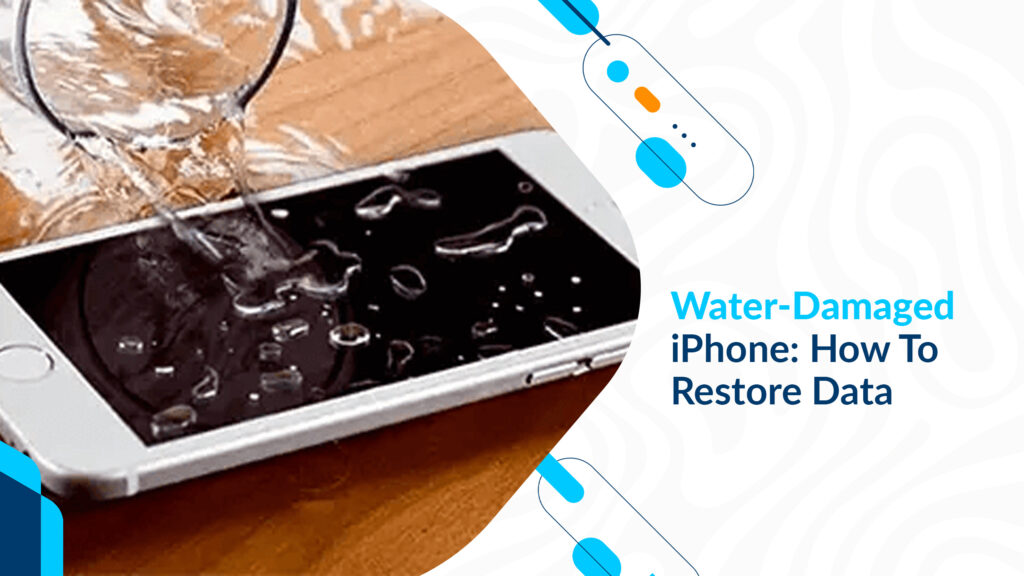
When your iPhone suffers water damage, it can be a distressing experience. Not only is the device itself at risk, but the data stored on it may also be in jeopardy. In this article, we will explore how to restore data from a water-damaged iPhone, emphasizing the importance of acting swiftly to salvage your valuable information.
Remove the iPhone from the Water Immediately
The first and most crucial step is to remove the water-damaged iPhone from water or any liquid source as quickly as possible. The longer the device remains submerged, the greater the risk of irreparable damage. Power off the iPhone immediately to prevent electrical short circuits.
Don’t Turn It On
Avoid the temptation to turn on the iPhone to check if it’s still functional. Powering on a wet device can cause further damage. Instead, focus on drying and assessing the device first.
Dry the iPhone Thoroughly
To dry the iPhone, follow these steps:
- Gently shake the device to remove any excess water from the ports and openings.
- Use a lint-free cloth or paper towels to blot away moisture from the exterior. Pay special attention to the charging port, headphone jack, and speakers.
- Do not use a hairdryer or heat gun, as excessive heat can damage internal components.
Place It in Rice or Silica Gel
A popular method to remove residual moisture from a water-damaged iPhone is to place it in a container filled with uncooked rice or silica gel packets. These materials can help absorb the remaining moisture. Leave the iPhone submerged in rice or silica gel for at least 24-48 hours.
Check for Functionality
After the drying period, cautiously attempt to power on the iPhone. If it turns on and functions normally, you may be in luck. However, if it doesn’t respond or behaves erratically, it may require professional repair.
Recover Data from Backup
If your water-damaged iPhone is beyond repair or you’re concerned about potential future issues, your next step is to recover data from a backup. If you regularly back up your iPhone to iCloud or iTunes, you can restore your data to a replacement device.
- For iCloud backup: Set up a new iPhone or replacement device and choose the option to restore from an iCloud backup during the initial setup process. Select the most recent backup, and your data will be restored.
- For iTunes backup: Connect your replacement device to a computer with iTunes installed. Choose the option to “Restore Backup” and select the most recent iTunes backup to restore your data.
Conclusion
Water damage to an iPhone can be a stressful experience, but quick and appropriate action can often prevent permanent data loss. Remember to remove the device from water immediately, dry it thoroughly, and avoid turning it on until you’re sure it’s dry. If the device doesn’t recover, you can still retrieve your data from a backup source, whether it’s in iCloud or iTunes. The key is to act swiftly and follow these steps to increase your chances of successfully restoring your valuable data.